Create a long section to view objects offset from the alignment relative to another long section.
Home / Tools / Create /  Long Section /
  Offset Range
- Profile module
- Active model view
| Control | Description |
|---|---|
| Name | Type a name for the created long section or click  to use the next available auto incremented name. to use the next available auto incremented name.Note:
|
| Use name as layer | Do one of the following:
|
| Alignment | Select an alignment from the list that will be used to create a long section. |
| Join By | Select one of the following to determine the long section point types extracted from the selected objects:
|
| Start Chainage | Input the chainage to start the search corridor. |
| End Chainage | Input the chainage to end the search corridor. |
| Offset | Input the offset distance from the Alignment to define the centre line of the search corridor. Note:
|
| Range (+/-) | Input the distance either side of the search corridors centre line to define the search corridor. |
| Scan Point Interval | Control the density of point cloud vertices extracted and displayed as isolated points in a long section. Type the minimum distance or height difference between extracted point cloud vertices. |
- Select point, line or point cloud objects in a model view then click OK to extract a long section from selected objects within the specified search corridor.
- The search corridor does not extend beyond the Start Chainage and End Chainage.
- The chainage of the object is computed by orthogonally projecting the objects vertex on to the Alignment in 2 dimensions. When an offset can be computed to multiple locations on the alignment the location closest to the object is used to compute the long section point. If a chainage cannot be computed for a selected objects vertex a point is not created.
- The height of the extracted point is the height of the original vertex.
- Extracted points are visible in the long section view only and do not share topology with any model view objects.
- If extracted points are joined in the long section, the long section can be viewed in the model plan view and 3D view.
- Only alignments from the current project can be used to extract a long section. You can pick an Object from a reference file.
- When extracting points from lines:
- Each vertex is orthogonally projected onto the Alignment.
- If only one of the start or end vertices of the objects segment can be orthogonally projected onto the Alignment, a long section point is created using the location on the object where an orthogonal projection is computed at the start or end of the alignments segment. See Example 1 below.
- If a line is partially in the search corridor then a point will be extracted where the line segment intersects with the search corridor boundary. Line segments that fall outside the alignment will not be extracted. See Example 2 below
- Circular curves, transition curves and splines are approximated using the 'Curve Tolerance' setting in the Create Options for the purpose of determining the chainage of the object relative to the Alignment.
- The Source Type of the extracted points will show the object type used to compute the long section point.
- The Source Object ID of the extracted points will show the unique id of the object used to compute the long section point. If the extracted points were from an object in a reference file, 'Reference' will display.
- The selected objects must not include vertices with default heights.
- When joining by distance, points with the same chainage will join the closest 3d distance from the previous point first.
- Circular curves, transition curves and splines are approximated using the 'Curve Tolerance' setting in the Create Options for the purpose of determining the chainage of the object relative to the Alignment.
- If the Duplicate Chainage dialog displays select the correct distance from the start of the alignment that you want to start or end the search corridor from.
- If a line is partially outside the search corridor, the location where the line intersects with the extents of the search area is used to compute long section points relative to the alignment.
- A long section can have a maximum of 100,000 points.
- Point only long sections can only be exported to the LISCAD format.
| Error | Description | Solution |
|---|---|---|
| Cannot create long section at default heights. | At least one object in the selection contains a default height. A long section cannot be created. | Assign heights to the objects you are trying to compute a long section from, or remove objects with default heights from the selection. |
| The computation has no solution. | Either the search corridor failed to compute due to the search corridor extents intersecting, or there are no objects in the selection within the computed search area. | Check the selected objects are within the search corridor specfied or reduce the chainage range to avoid intersecting lines defining the search area. |
The following examples illustrate complex cases when a long section is extracted from a line object.
Legend
| Symbol | Description |
|---|---|
 |
Existing line vertices. |
 |
Computed long section points. |
 |
Temporary vertices for computation of the long section points height. |
 |
Temporary vertex where the search corridor intersects the line, for computation of the long section points height |
| Line Style | Description |
 |
Line object to be extracted. |
 |
Alignment |
 |
Existing line vertices projected perpendicular offset to the alignment. |
 |
Perpendicular offset from the start of the alignment to the line. |
 |
Search corridor boundary. |
Example 1 - Line extends beyond the start of the alignment.
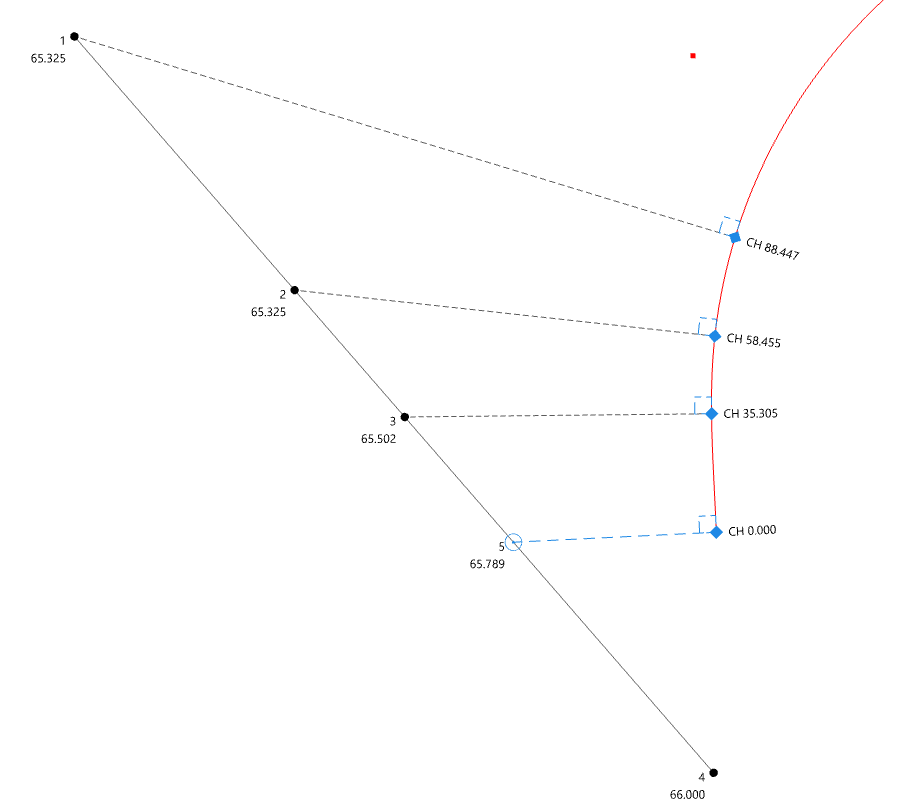
When long section points are extracted from a line, the alignment is not projected. This means that line vertices beyond the start of the alignment (vertex 4) will not have a long section point computed for it. Instead, a long section point is created at the start of the alignment. To compute a height for this point, a temporary vertex on the line (vertex 5) is computed using a perpendicular offset from the start of the alignment to the line object. A height (65.789) is then interpolated for vertex 5 using the grade of the line segment.
Example 2 - Line crosses the search corridor boundary.
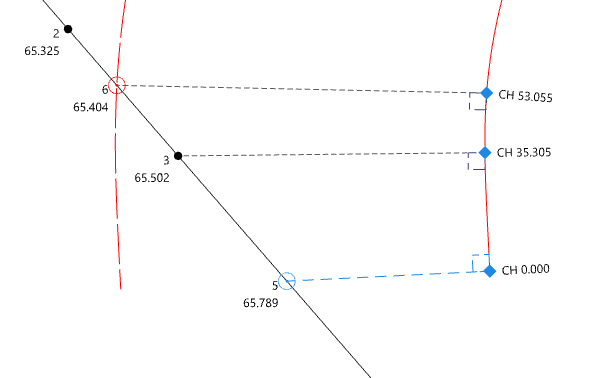
When a line is only partially within the search corridor, a temporary vertex (vertex 6) is computed at the intersection of the line and the corridor search boundary. A height (65.404) is then interpolated for vertex 6 using the grade of the line segment. A long section point is then created by orthogonally projecting vertex 6 on to the alignment. The long section point extracted from the lines intersection with the search corridor has a chainage of 53.055 and a height of 65.404.